Please read our guidelines on How to Prepare Excel Files for Vicosight Integrate and How to Prepare Word Files for Vicosight Integrate before you start.
Please note that there is 32MB size limit for Excel files.
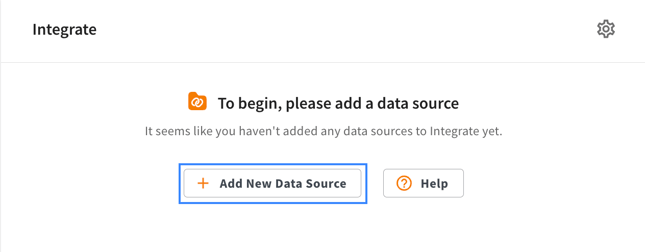
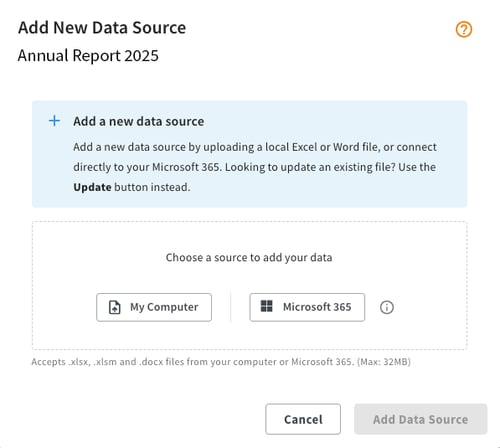
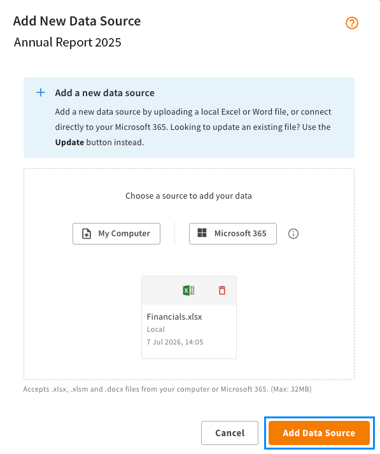
To upload a new data source, first navigate to your project. Within the project, scroll down, and below the chapter list, you will find the Vicosight Integrate section. Click the "Add New Data Source" button as shown in the images below, and upload your data source file from either "My Computer" or "Microsoft 365". If you are adding data directly from Microsoft 365, you will be redirected to login to your One Drive account.
Manage Versions from Microsoft 365
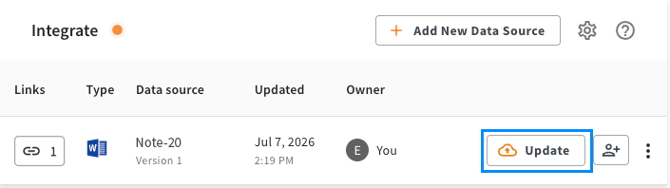
The data source owner or a user with Editor permissions can update, as long as you have access to the file in Microsoft 365, a new version simply by clicking on the 'Update" button. This will automatically sync with your files from Microsoft 365.
Manage Versions from My Computer
The data source owner or a user with Editor permissions can upload a new version. To upload a new version of the data source, click "Update" next to your data source as shown in the images below.
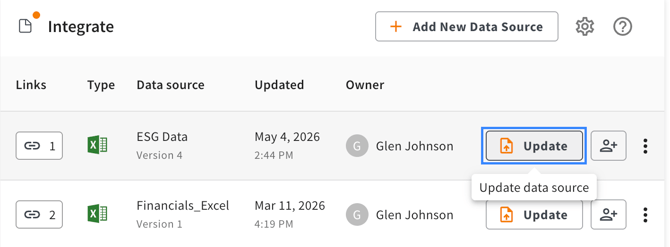
Click "My Computer" to add a new version of the data source from your computer (local file). Click "Microsoft 365" to link your data source to a file you have in Microsoft 365.
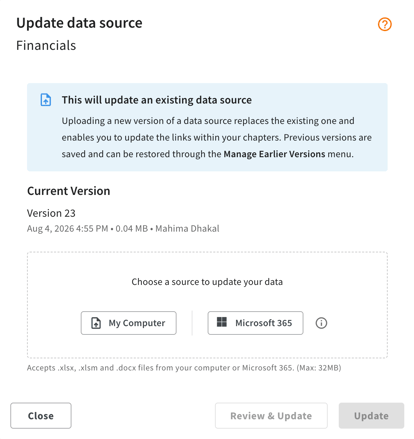
Please note that once you have linked your data source to a file in "Microsoft 365", you will not be able to upload another version of the document from your computer (local file) as your data source will automatically sync with your files from Microsoft 365.
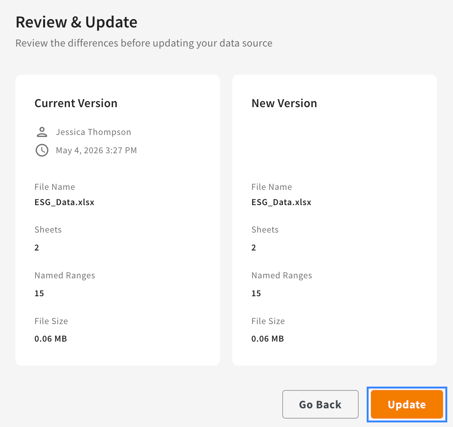
Once you have added the data source, you can click "Review & Update" to compare the data source version you uploaded with the current data source version.
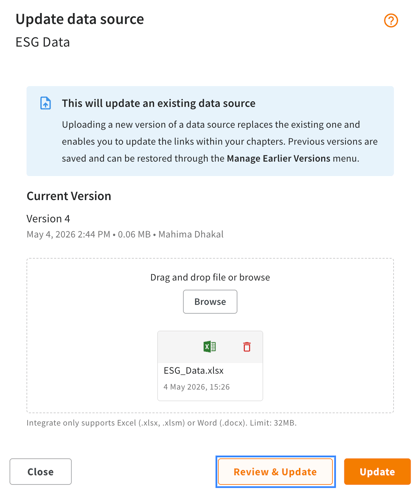
You can confirm that you have uploaded the correct version and click "Update".
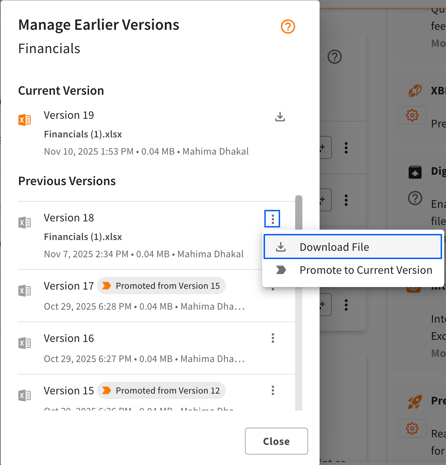
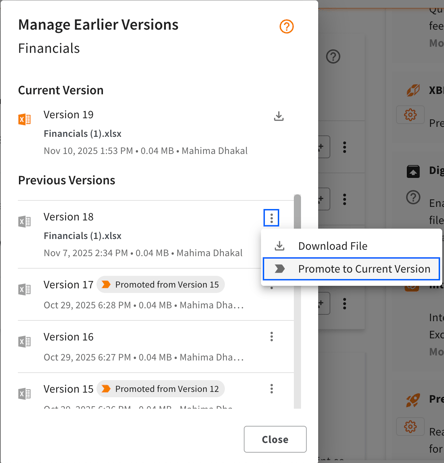
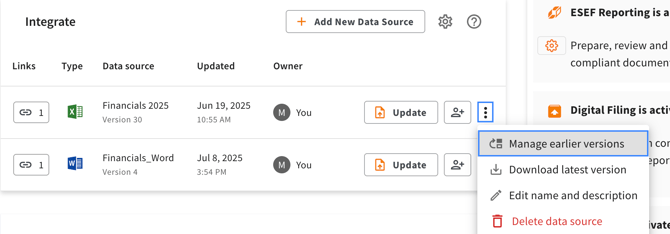
You can also see all previous versions by clicking "Manage earlier versions" as shown in the image below. This is applicable for both data source from the local drive or Microsoft 365.
If you click the context menu next to your Previous Versions, you can Download File or Promote to Current Version. You can also see the details about when it was uploaded and which version it was promoted from, in all of your previous data source versions.