
Adobe InCopy/InDesign does not have an auto-save function, so it is important to save your work regularly. The chapter will be saved on your computer (locally) and may be retrievable in the event of a program or system crash.
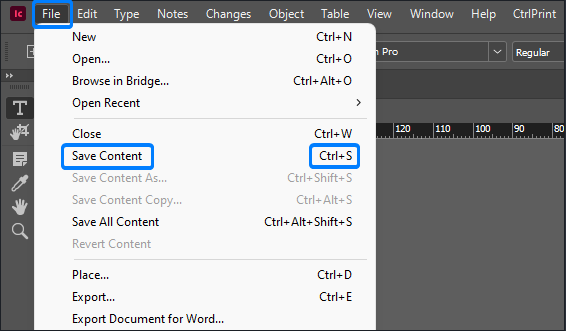
InCopy – Save Content
In InCopy you must click "Save Content" to save your work.
Click File -> Save Content.
Alternatively, you can use the keyboard shortcut Ctrl+S (Cmd+S on Mac computers).
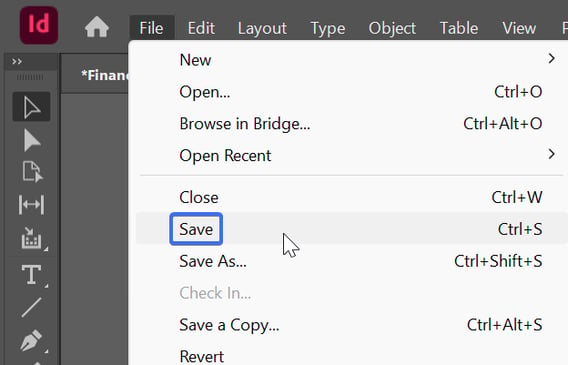
InDesign – Save
In InDesign you must click "Save" to save your work.
Click File -> Save.
Alternatively, you can use the keyboard shortcut Ctrl+S (Cmd+S on Mac computers).
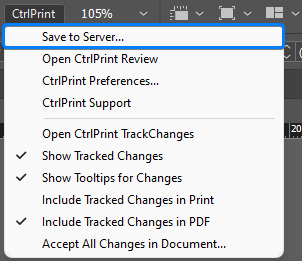
Save to Server (check in)
You must click "Save to Server" when you have finished making changes. When you save a chapter back to the server, this new version becomes available for edit for the rest of your team members.
Once you have clicked "Save to Server" you can enter an optional version comment and click: "OK".
This chapter version comment will be displayed on the bottom of the chapter page on Vicosight.
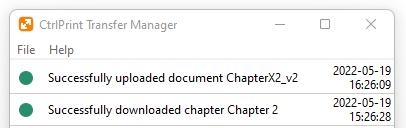
The Transfer Manager will open and confirm when your document has successfully uploaded.
How should I proceed if I want to take my documents out from Vicosight?
Please use the Save As or Save a Copy functionality in InDesign, which enables you to save the document to another location on your local computer while accepting all tracked changes. However, this will remove the document's connection to the server, which means that it cannot be saved back to Vicosight. Therefore this is only recommended for taking documents out of Vicosight.
The difference between Save As and Save a Copy
The "Save As" file will replace the original (connected to Vicosight) file as the active newly named document where as the "Save a Copy" file creates a separate backup copy while keeping your original (connected to Vicosight) file active.
Please note that our recommendation is to use the Save option to save your changes when working in Vicosight.