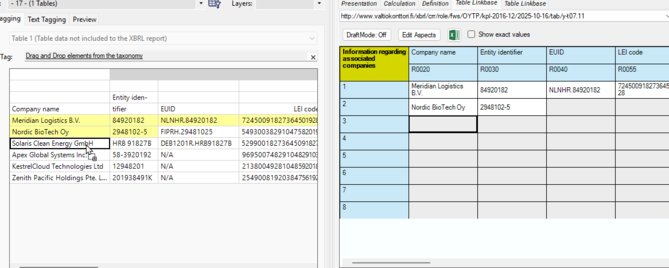
The Standard Business Reporting (SBR) taxonomy uses a Data Point Model (DPM) and Table Linkbase architecture to organise financial statements into structured, predefined table templates rather than traditional hierarchical trees.
Table of Contents
How to Tag Tables
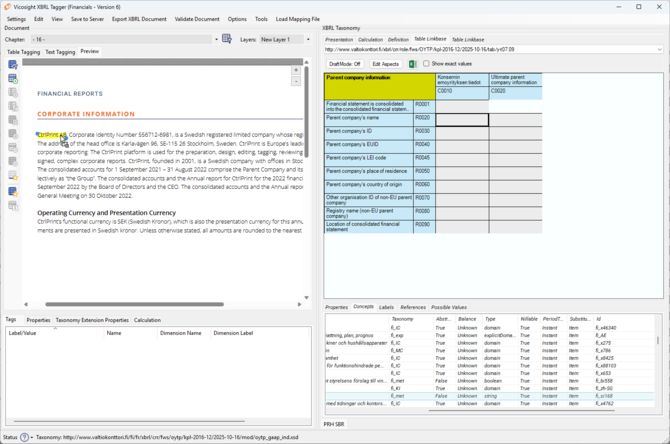
- Navigate to the page (called chapter in the Tagger) containing the table you want to tag. Double click on the page and adjust the blue dots to highlight the table, excluding any footnotes from the highlighted area.
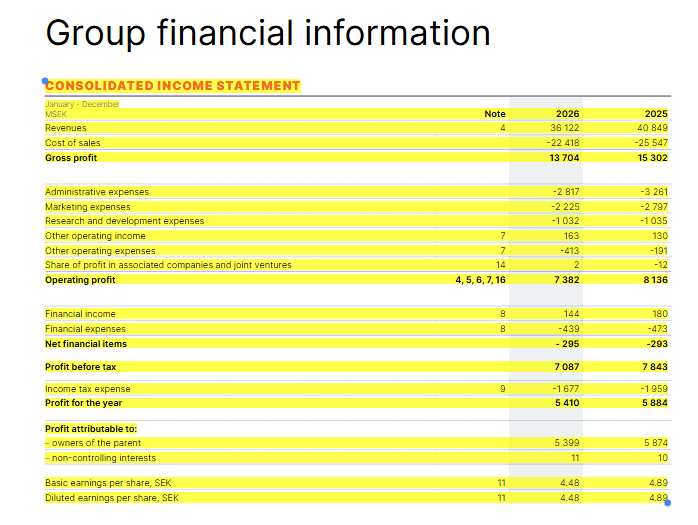
- Double click on the yellow highlighting and the progress box below will appear.

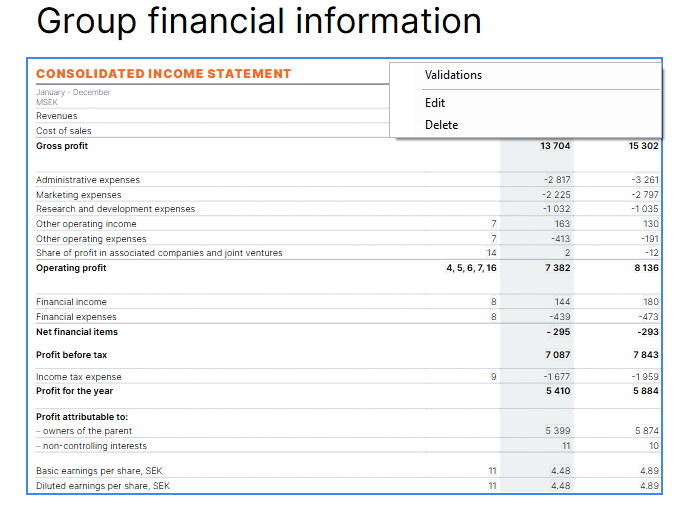
- You can edit or delete the table once it is selected by right clicking on the blue border of the table.
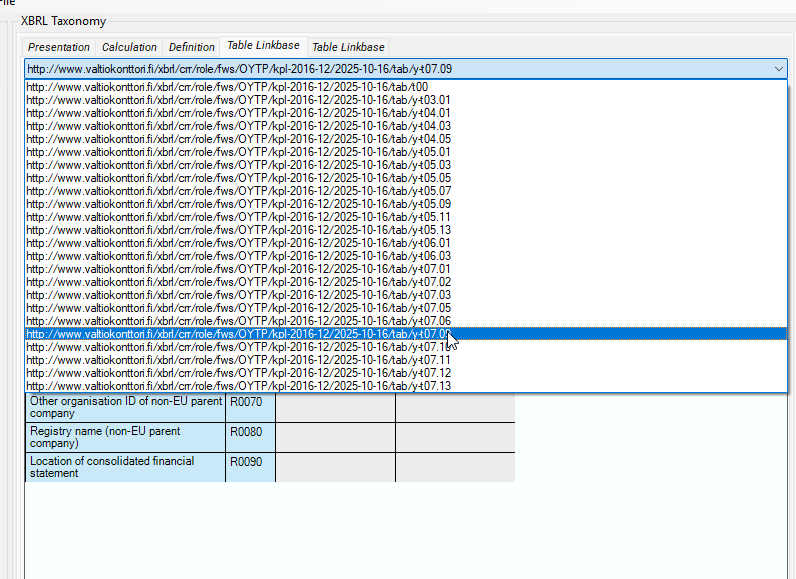
- Open the table tagging tab, then navigate to the table linkbase tab in the XBRL Taxonomy view. Select the appropriate table from the dropdown menu.
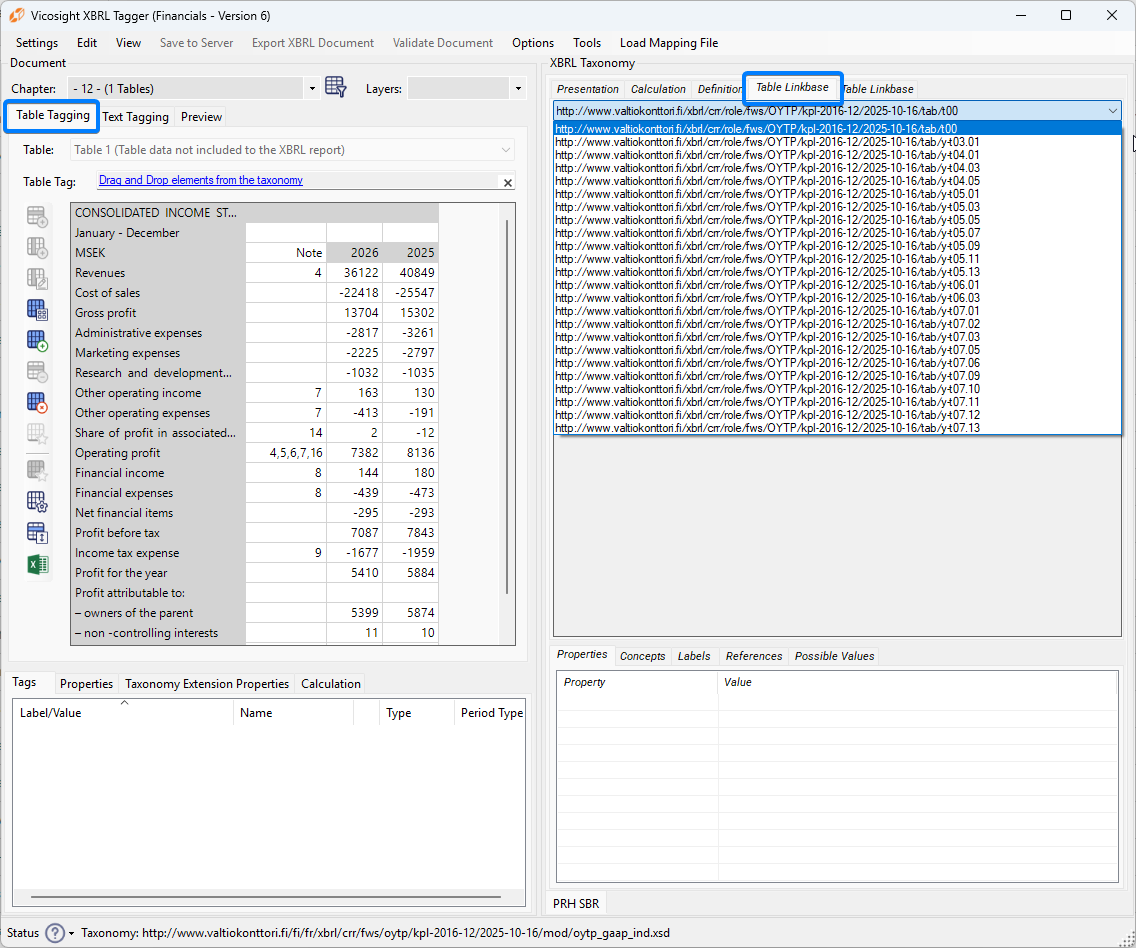
- After selecting the table, drag and drop the cells from the taxonomy view onto the corresponding cells in your document table. Make sure each cell is mapped to the correct financial year. Complete this step separately for both years.
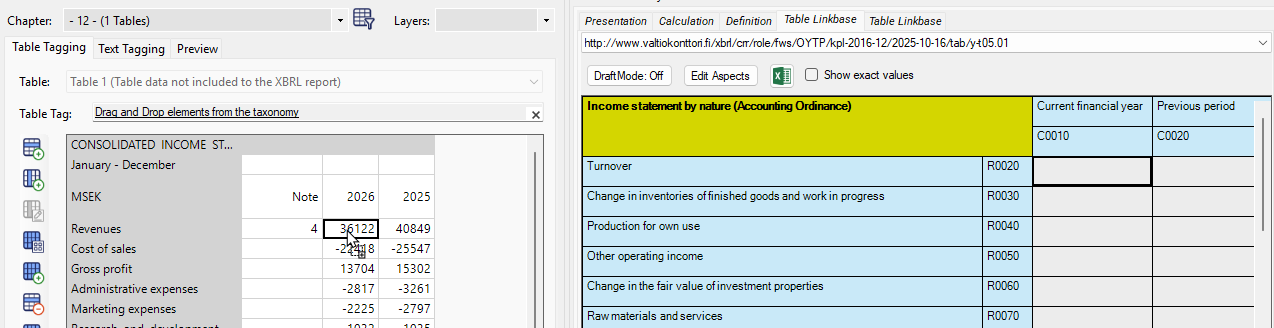
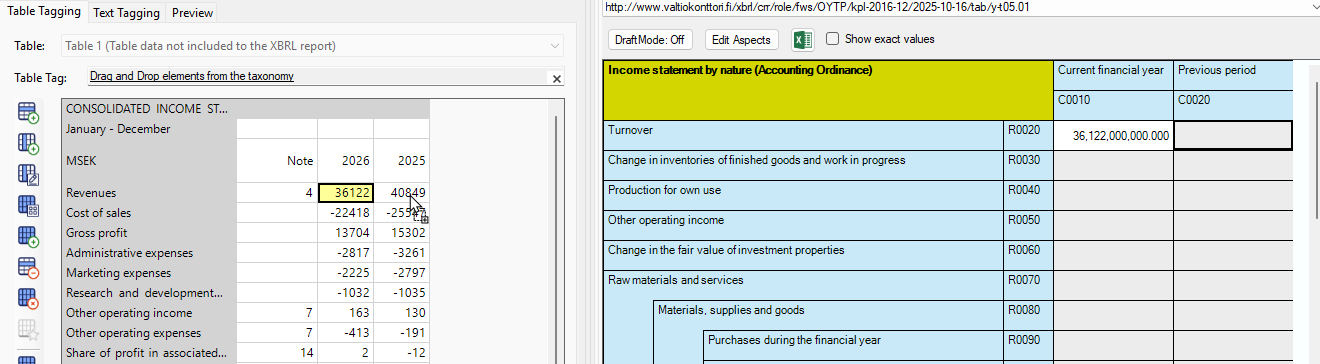
Note: You cannot create calculations in this taxonomy.
How to Tag Text
- From the dropdown menu, select the appropriate table linkbase for the text you want to tag.
- In the preview tab, highlight the text you want to tag. If you have difficulty selecting it, double-click on the page near the text, then drag the two blue dots to adjust the highlighted area.
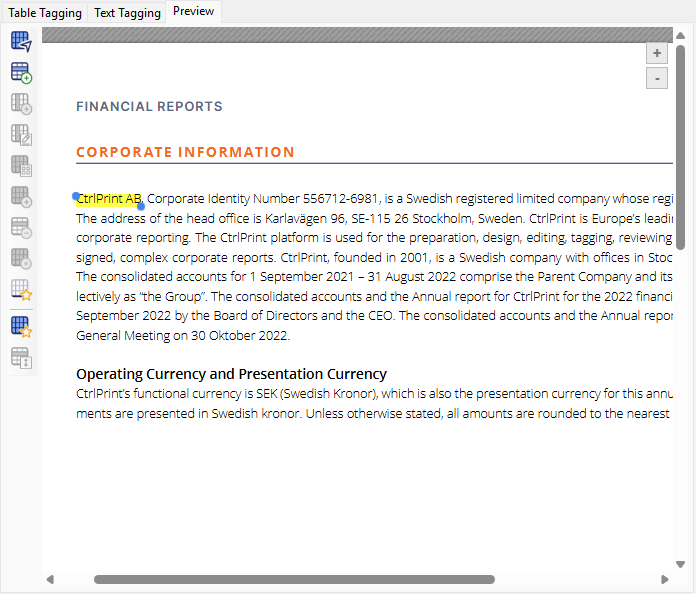
- Drag and drop the appropriate tag onto the text highlighted in yellow.
How to Tag Dynamic Tables
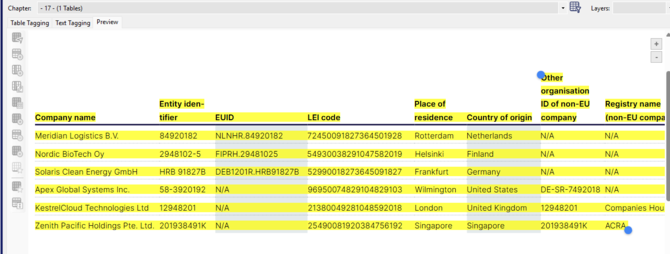
Dynamic tables support tagging tables with a variable number of entries, such as shareholdings in other companies.
- Go to the page (chapter) in the document you want to tag. Highlight the table using the blue dots and double click on the yellow highlighting.
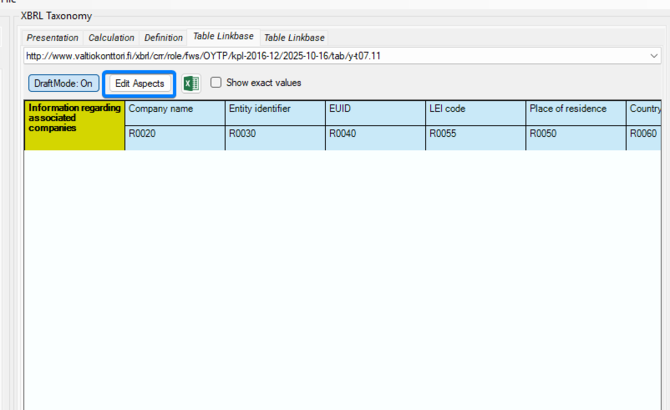
- Navigate to the linkbase containing the dynamic table, then click Edit Aspects.
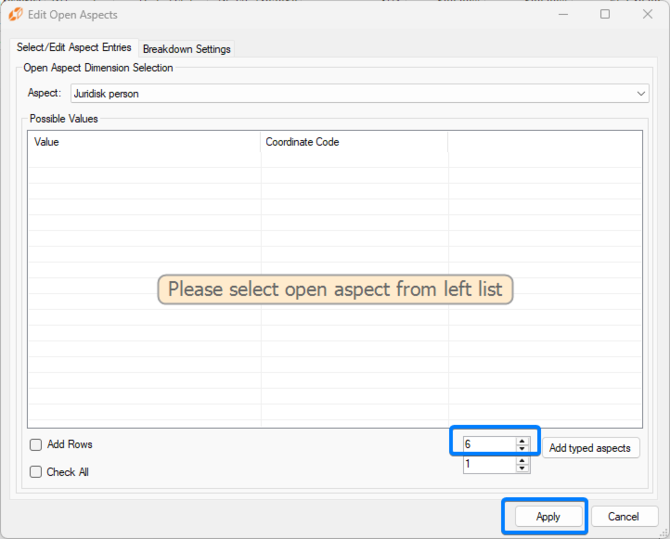
- Select how many rows you want to add and click apply
- If the first column of your table contains values or text you want to tag, open the table settings and set Label Column ID to 0.
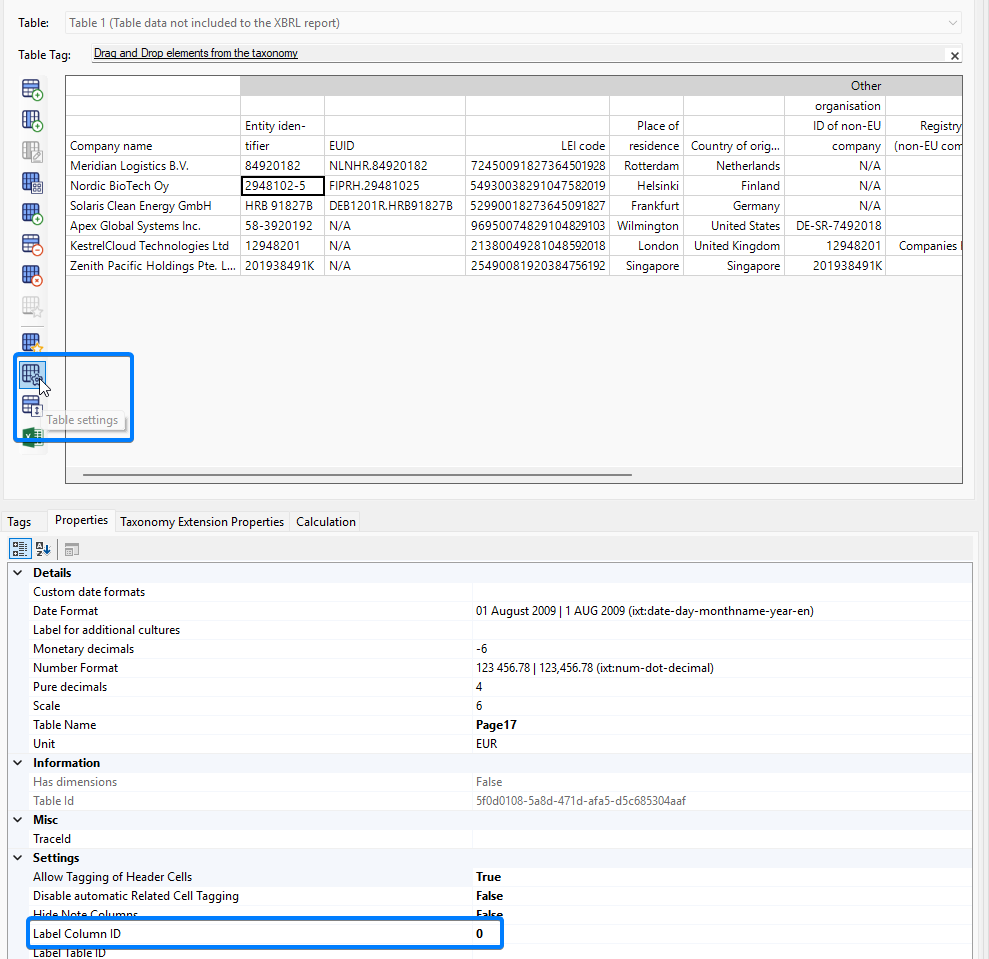
- Drag and drop the relevant tags onto the corresponding cells in the table.