You can use the mapping file from the previous years tagging on your financial tables. The best results will be achieved if the layout and order or line items has not changed for the table.
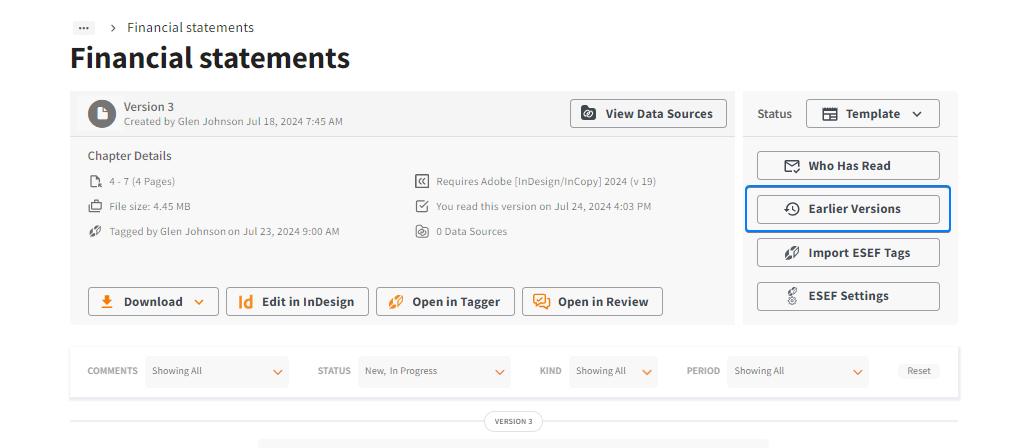
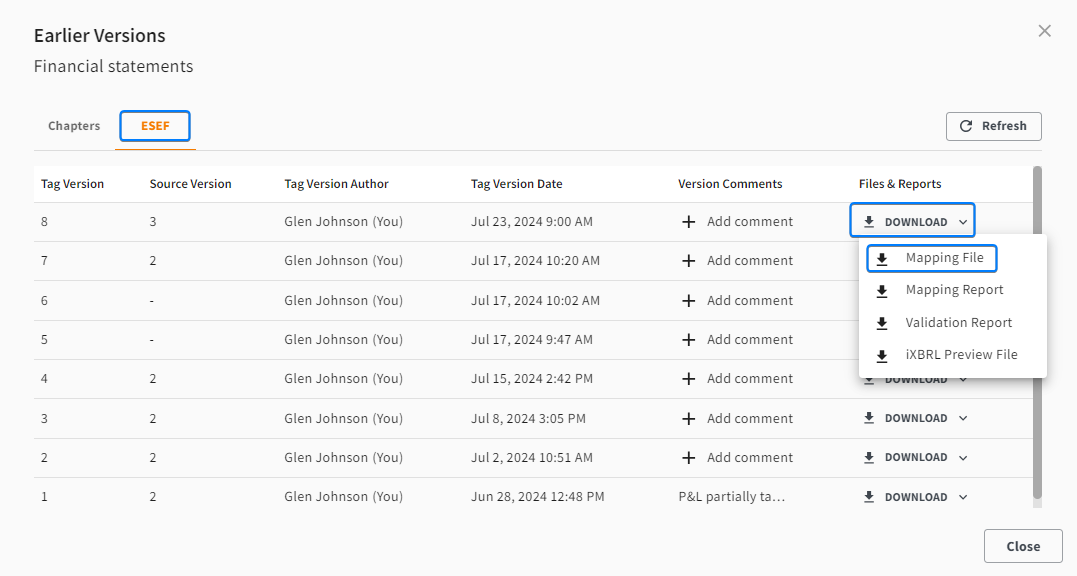
- Navigate to the relevant chapter on the previous year’s project page and download the mapping file, as shown in the screenshots below. Do not open the mapping file; simply download it. You will load it into Tagger in Step 4.
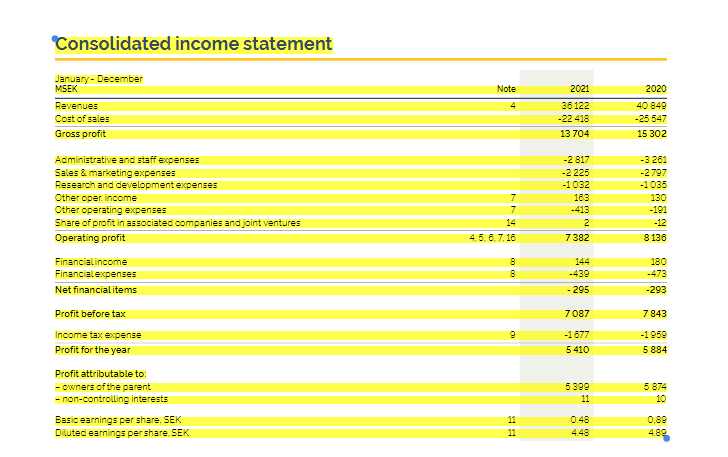
- Open the relevant chapter in the current year’s project in the Tagger. Select the table in question with yellow highlighting and apply the relevant table tag (Abstract). Do not use the shift key while selecting the table as this can lead to issues reapplying the table tag which in turn leads to issues with reapplying the tags themselves.
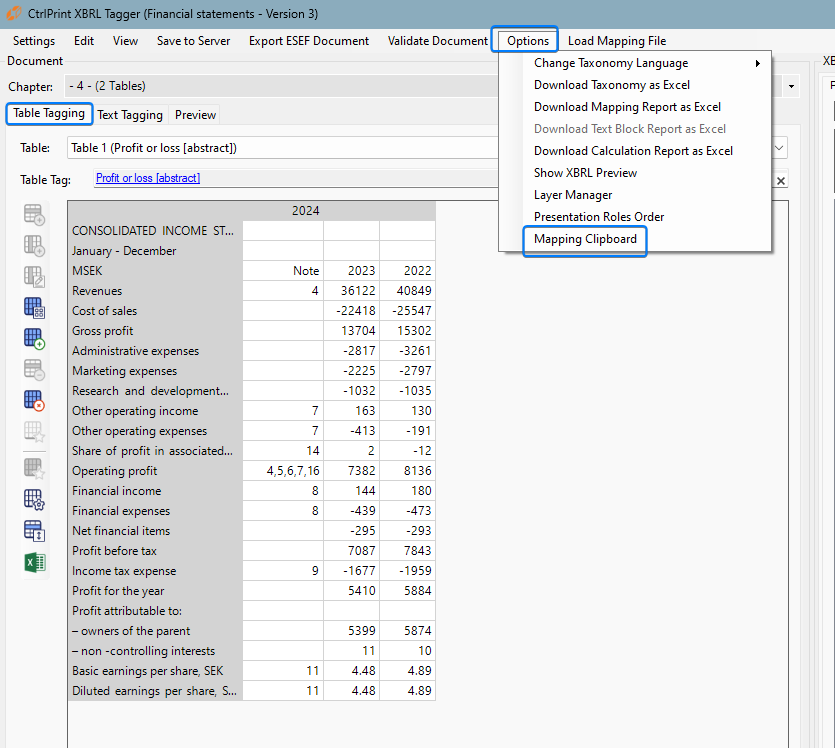
- Go to the Table Tagging tab and then go to the menu called Options and click on "Mapping Clipboard".
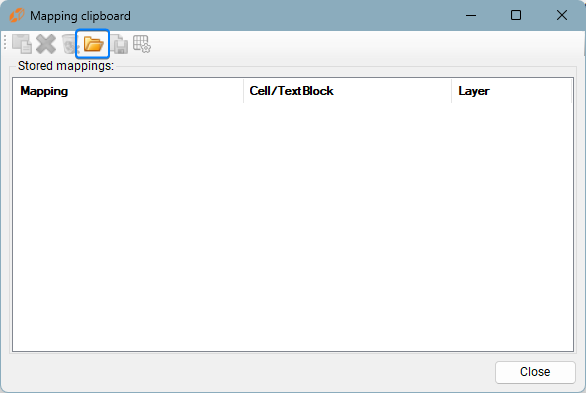
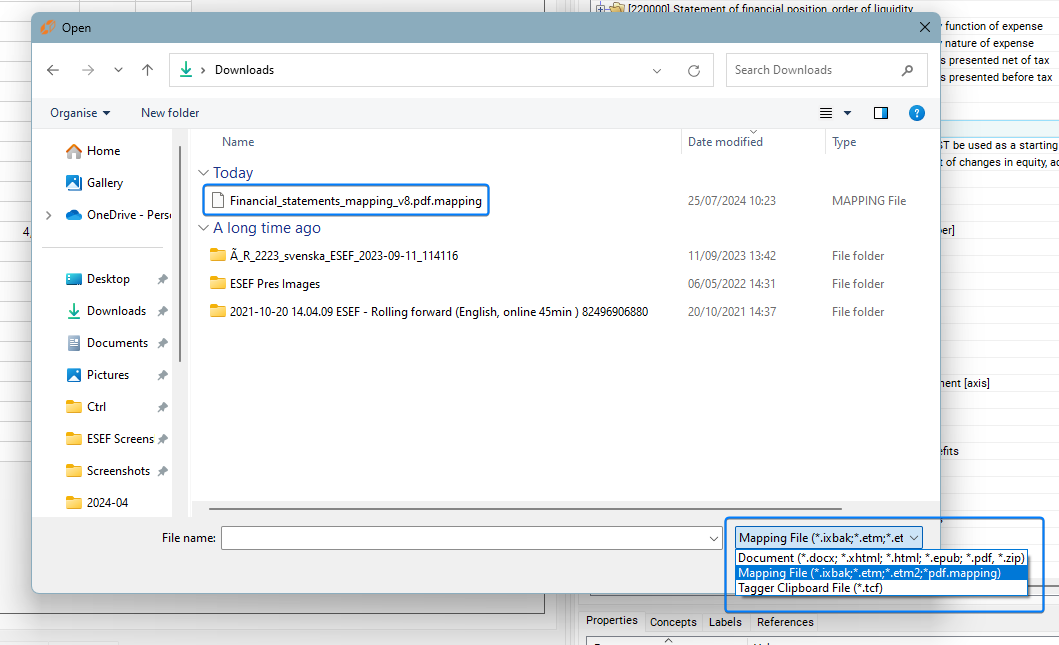
- Load the mapping file according to the screenshots below. Do not forget to change the format in the indicated field.
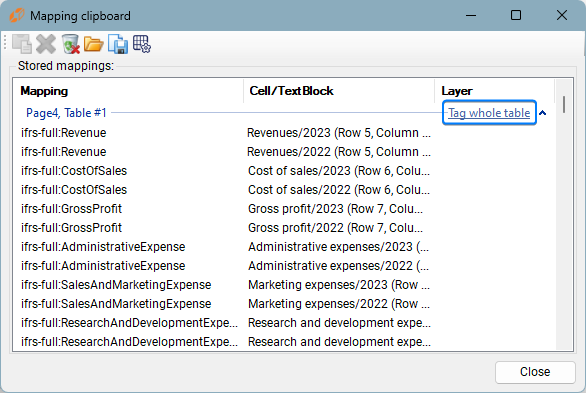
- In the Mapping Clipboard, check that the correct table has been listed by checking the first few line items, press "Tag Whole Table".